TUTORIALS
Use one of the following tutorials to quickly and easily prepare files ready for printing.
Common Printing Terms
This useful tutorial will explain in plain English some common printing terms and will help you understand the below tutorials. It covers Vector, Raster, Resolution etc. Click here for the Printing Terms tutorial.
NEW - Brochure, Booklet and Book layouts and information
This tutorial contains information regarding bleeds, fold and panel measurements as well as pagination information. Designed to assist you in preparing print ready files for Brochures, Booklets and Books. This tutorial also has links to Indesign Templates for the same.
Click here for the Brochure, Booklet and Book layouts.
NEW - Blacks
This tutorial contains information regarding the use of blacks, rich blacks and ink loads.
Click here for the Blacks.
Bleed
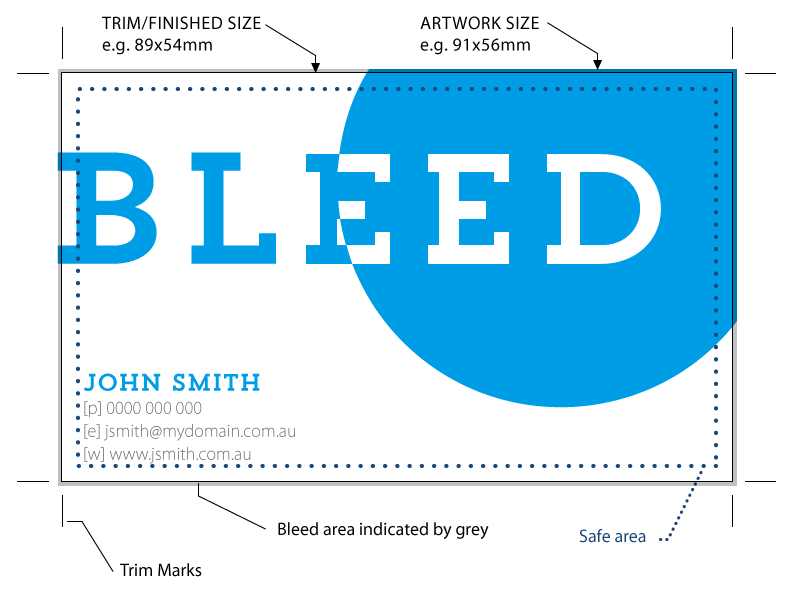
This useful tutorial will explain what bleed is and how to apply it's principles to your file.
Click here for the How to use bleed tutorial.
Overprinting
Overprinting text in particular is useful for eliminating ghosting between two objects or around text for example that is placed over a colour background or picture. The Overprinting Tutorial show examples of where and how to apply overprinting.
Trapping
Trapping is essentially a very small overlap between two objects to ensure clean registration between the two and ensure no ghotsing is present on your final job (white space). The Trapping Tutorial show examples of where and how to apply trapping.
Presets
Use these settings when creating your files and this will help eliminate incorrect PDF settings.
Presets are exactly that, pre-set settings, we have made these settings available for you to download in order to make the creation of PDF and other files a lot easier. Use this tutorial to find out how to download and load our settings into your application.
Loading and Using the Print Domain Acrobat Distiller Settings
We have also made our Distiller settings available for those trade customers who have a full version of Acrobat. We have also included included in the tutorial below the preflight profile "List all potential problems" which when used in conjunction with our distiller setting should produce accurate preflight results. For more information on how to load the Print Domain Distiller settings and see our Acrobat Distiller Tutorial.
Loading and Using the Print Domain Acrobat Preflight Profile
The following tutorial is designed to step you through loading the Print Domain Preflight settings for those who have Acrobat Professional. Run the preflight on your print ready pdf files. To view the tutorial click here.
RIP settings
By default our RIP is set to overprint text and objects that are filled with 100% Black.
Keep this in mind if you are placing large block areas of black over pictures for example as the picture will show through a solid black box when ripped. For more information see the Rip Settings tutorial.
How to use the FTP site
If you have a large file/files to send it's often better to send them via FTP rather than Email. This tutorial shows how to Log on to our FTP site and how to upload your files, click here for the FTP tutorial.
Preparing and Creating a Print Ready PDF from Photoshop
The following tutorial is designed to help you create print ready PDF files from Photoshop with all vector data intact (fonts and vector objects not rasterised). It also covers loading Print Domain PDF export presets in Photoshop CS 2. To view the tutorial click here.
Preparing and Creating a Print Ready PDF from Illustrator
The following tutorial is designed to help you prepare you Illustrator file and save it as a print ready PDF file. To view the tutorial click here.
Preparing and Creating a Print Ready PDF from Indesign
The following tutorial is designed to help you flatten and export your indesign file as a print ready PDF file. To view the tutorial click here.
How to Publish a PDF from Corel Draw
This tutorial outlines the correct settings to use when publishing a PDF file from Corel Draw. Corel tutorial.
Word and Publisher files
Word and Publisher files are not print ready files, if you have created your artwork in one of these programs or another non Adobe application and you will need to first convert it to a Adobe PDF. If you would like help converting your file to a PDF.
please contact our friendly design staff on 1800 645 233!
How to change Margins in Word
This tutorial shows you how to change the page margins in Word, click here for the tutorial.
How to set the page size in Word
This tutorial shows how to change the page size of an existing document or how to set it for a new document, click here for the tutorial.
Stay Tuned
We will be expanding this section of our site in the new year so stay tuned,
if however you need urgent help contact our friendly staff who are more than pleased to help
Disclaimer: Print Domain offers this advice free of responsibility. It is the sole responsibility of the client to provide files to our specification, any error in provided files and resulting printing is the responsibility of the client.
|