PREPARING PHOTOSHOP
FILES FOR PRINT
TUTORIAL WELCOME:
As an extension to our aim of customer service excellence we present the following tutorial on Photoshop and trust it will assist you in preparing your file, should you have any further questions or require assistance please contact our friendly design staff on 1800 645 233.
# INTRODUCTION:
The following tutorial is designed to help you create print ready PDF files from Photoshop with all vector data intact (fonts and vector objects not rasterised).
To make things easier we have separated this tutorial into 3 sections Preparing your file, PDFs in Photoshop CS 1 and PDFs in Photoshop CS 2. Regardless of your version you should read "Preparing your file" first. You will find this a bit hard going as Photoshop is not the best application in which to create print ready files it is predominately for photo enhancement and manipulation, if you have the option we would strongly suggest designing your file in either Indesign or Illustrator.
# PREPARING YOUR FILE:
In order to make a PDF successfully from Photoshop it is important to layer and flatten your file in a certain manner.
We first need to cover some a few key printing terms:
RASTER/RASTERISED: If an object or file is rasterised it means it is made up of pixels (small squares of colour). Raster or pixel based images (such as photos) are not able to be enlarged beyond their original size without loss in quality.
VECTOR: If an object is vector based such as text or a shape (such as a polygon or path) it has no limit on the amount it can be enlarged without any loss in quality. Vector objects have a mathamatical basis.
RESOLUTION: the resolution of a image (pixel based such as a photo) determins the physical size that the image can be printed. Commercially printed images need to be a resolution of 300-350 dpi (dots per inch). Below you will learn how to check the resolution and physical size of your file.
CHECKING YOUR FILE SIZE AND RESOLUTION:
1) Open your file in Photoshop or create a new one. If starting a new document ensure that the width and height are correct and set your resolution to 300 or 350 pixels per inch and the colour mode to CMYK.

SIZE
2) Click Image > Image Size
the following dialogue box will appear:

Under Document Size in the box you will see three measurements: width, height and resolution. The width and height tell you the physical size of your image, the resolution (in pixels per inch) tells you what resolution (or quality) your image is (it should be 300 or 350dpi).
IMPORTANT: When it comes to size and quality all three are tied together, you can't change one without effecting the other. To this end Photoshop has three check boxes to help you change the size & resolution of your file. They are Scale Styles, Constrain Proportions and Re-sample Image.
a) The first "Scale Styles" if checked changes the size etc of any effects that you may have added to a layer such as a drop shadow. You can check or uncheck this it's up to you.
b) The second "Constrain Proportions" when checked makes sure your image is either enlarged or reduced in proportion (not checking this will stretch your image and may produced poor results). Make sure it is checked for this exercise.
c) The third "Re-sample Image" should remain unchecked so that when we change the resolution of your image it doesn't give a false perception of it's actual printable size. Uncheck "Re-sample Image" you will notice now that there is a symbolic link between all three measurements in the dialogue box as per image below.

RESOLUTION
3) Check all three measurements are linked (as image above) and then ensure that your resolution is set to at least 300 pixels per inch. If your images resolution (res.) was less than 300 you will notice that the physical size of the file has been reduced (See the below images for a demonstration). If you file is now less than it's intended physical size then your file will only be able to be printed at that reduced physical size otherwise when printed it will be fuzzy or poor quality (pixelated).
For this reason it is important to make sure your photoshop document has the correct physical size and resolution prior to starting.
The image below shows a files set to the wrong resolution.

The image has now had the resolution changed to 300 ppi and in term the width and depth have been reduced.

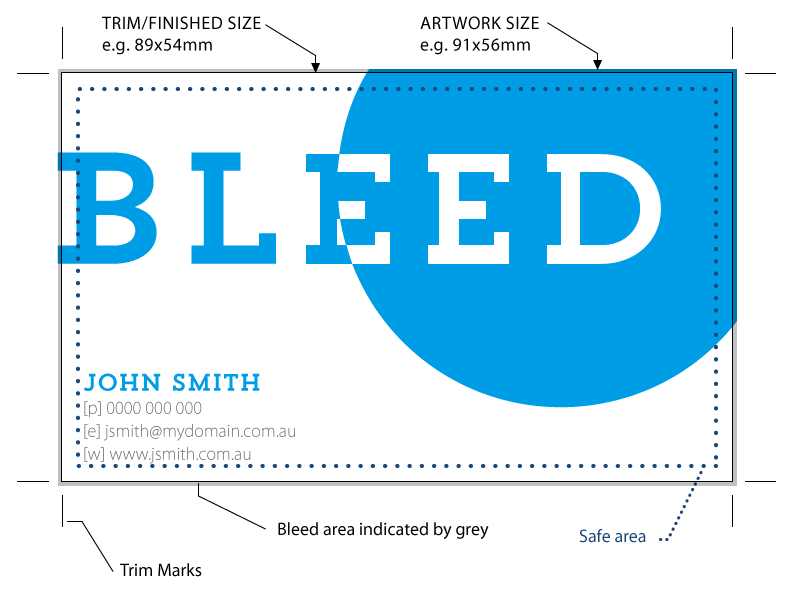
The below image shows the normal settings for a business card sized file or 91mm x 56mm.

COLOUR
4) Click Image > Mode and ensure that both CMYK Image and 8 bits/Chanel have a tick next to them (All commercial printing is done in CMYK = Cyan Magenta Yellow and K is Black). If not select them. If your document was not it CMYK already you will probably notice a change in the intensity of the colour. This is because the RGB colour mode contains more colours than it is possible to print thus many images may appear duller when converted to CMYK. You may want to adjust your colour at this point either through Image > Adjustments > Curves (or Levels).
|
 |
# PREPARING YOUR FILE Cont:
PREPARING YOUR LAYERS:
Nearly all Photoshop files have more than one layer and it is important that you set these our in the correct way in order to retain your vector data and ensure the best possible print result.
5) Save your Photoshop document as a PSD (this is your original don't save over it). Below is a image of the business card we will be using as an example. Note it has some text with a drop shadow effect that must be rasterised or flattened prior to save the pdf and it has some text with no effects and a grey vector shape.

6) Click Window > Layers to open your layes pallet if you don't already have it open (see image below).

7) Move any text layers without effects or vector object layers to the top of the layers stack by clicking on the name or preview of the layer (in the layers pallet) and dragging it upwards (see image below).
The image below shows 5 layers in total the top layer currently has an effect on it (see the f in a black circle to the right of the layer name) you need to move all vector layers above this layer.
This image shows the layers now in the correct order.

8) Turn off any text/vector layers without effects by clicking on the eye icon next to the layer name in the layers pallet (see image below).

9) Click Layer > Merge Visible, to merge all the other layers into one. You should now have one layer with which is the base of your artwork and a few layers of either text or vector objects above that (see image below).

Note the text with the effect and the background image are now one layer.
10) Turn the text/vector layers back on by clicking again on the eye symbol next to the layer (see image below).

Your file is now ready to be saved as a PDF check the tutorial Below for your version of Photoshop to see how to save it as a PDF.
# SAVING A PDF FROM CS V 2:
1) Download the PDF export presets (for your PC or Mac) from out presets page. Click here to view go to the presets page.
2) Open Photoshop and load the PDF preset, click here to see how to load the preset.
3) Click File > Save As
4) Enter your file Name
5) Choose Photoshop PDF from the file type menu.
6) Check the layers and use lower case extention boxes.
7) Ensure that Use proof setup and ICC profile are unchecked.
8) Click Save
# SAVING A PDF FROM CS V 1:
1) Click File > Save As
You will then be presented with a dialogue box (see image at the bottom of the page).
2) Enter your file Name
3) Choose Photoshop PDF from the file type menu.
4) Check the layers and use lower case extention boxes.
5) Ensure that Use proof setup and ICC profile are unchecked.
6) Click Save and you will be presented with the next dialogue box (see image below).

7) Ensure that the compression is set to JPG & maximum
8) Ensure Image interpolation if unchecked
9) Ensure PDF Security is off
10) Check Include Vector Data
11) Check Outlines for text
12) Click OK
Your PDF is now ready for Printing.
|