HOW TO PUBLISH A PDF FROM CORELL DRAW
As an extension to our aim of customer service excellence we present the following tutorial on our Corell Draw and trust it will assist you in preparing your file, should you have any further questions or require assistance please contact our friendly design staff on 1800 645 233.
# INTRODUCTION:
Use the following settings when creating a PDF file from Corell Draw.
">" indicates the option for that setting.
1) File > publish to PDF
This should bring up the dialogue box containing the available options for saving your file as a PDF. Listed below are the options/settings for a Prepress pdf, separated into the following sections: General, Objects, Text & Fonts, Document, Prepress and Advanced. Use these settings to create a PDF that is ready to be printed.
2) Change the setting to match the list below, depending on your version of Corell you may have less options, try to follow these as closely as possible.
GENERAL
Type of PDF > prepress
export range > current document
Compatibility > 4.0
OBJECTS
Colour bitmap images
bicubic downsampling to > 300 dpi/ppi
Compression > JPG (high or highest)
Grey scale bitmap images
bicubic downsampling to > 300 dpi/ppi
Compression > JPG (high or highest)
Monocrome
bicubic downsampling to >1600
Compression type > jpg
TEXT & FONTS
Export all text as curves > on
embedded fonts in document > on (this option may become inactive once text as curves is selected)
embed base 14 fonts > on (this option may become inactive once text as curves is selected)
convert true type to type 1 > on (this option may become inactive once text as curves is selected)
subset fonts 80% of chart set > on (this option may become inactive once text as curves is selected)
compress text & line art > on (this option may become inactive once text as curves is selected)
DOCUMENT
Bookmarks > off
include hyperlinks > off
generate bookmarks > off
generate thumbnails > on
on start display > page only
PREPRESS
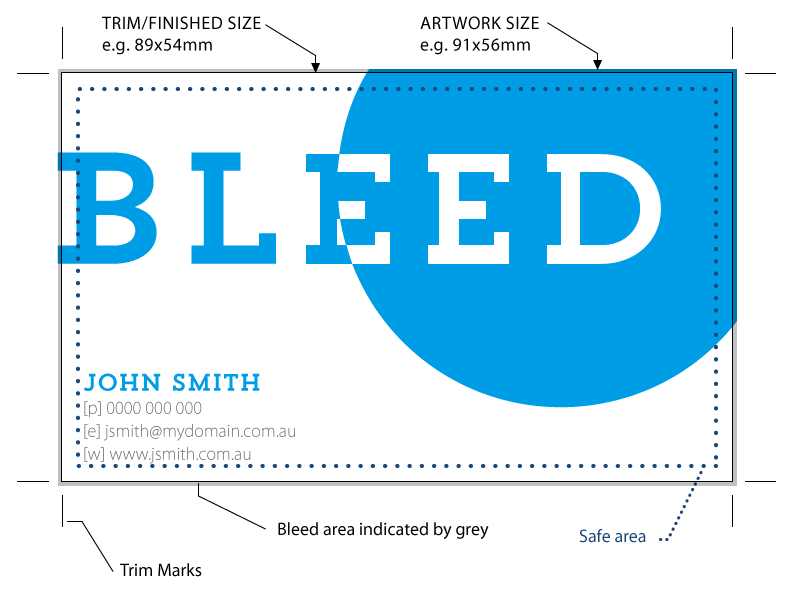
Include bleed is > on
printer marks > off
crop marks > on
file information > off
registration marks > off
densitometer scales > off
ADVANCED
render complex files as bitmap > off
preserve document overprints > on
preserve halftone screen information > on
preserve spot colours > off (if your job is to be printed in full colour) on (if your job has spot colours)
maintain opi links > on
fountain steps > 256
eps > postscript
optimize for web > off
colour management > output all objects as CMYK (you will obviously not use this setting if you are doing a spot colour job)
apply ICC profiles > off
|